
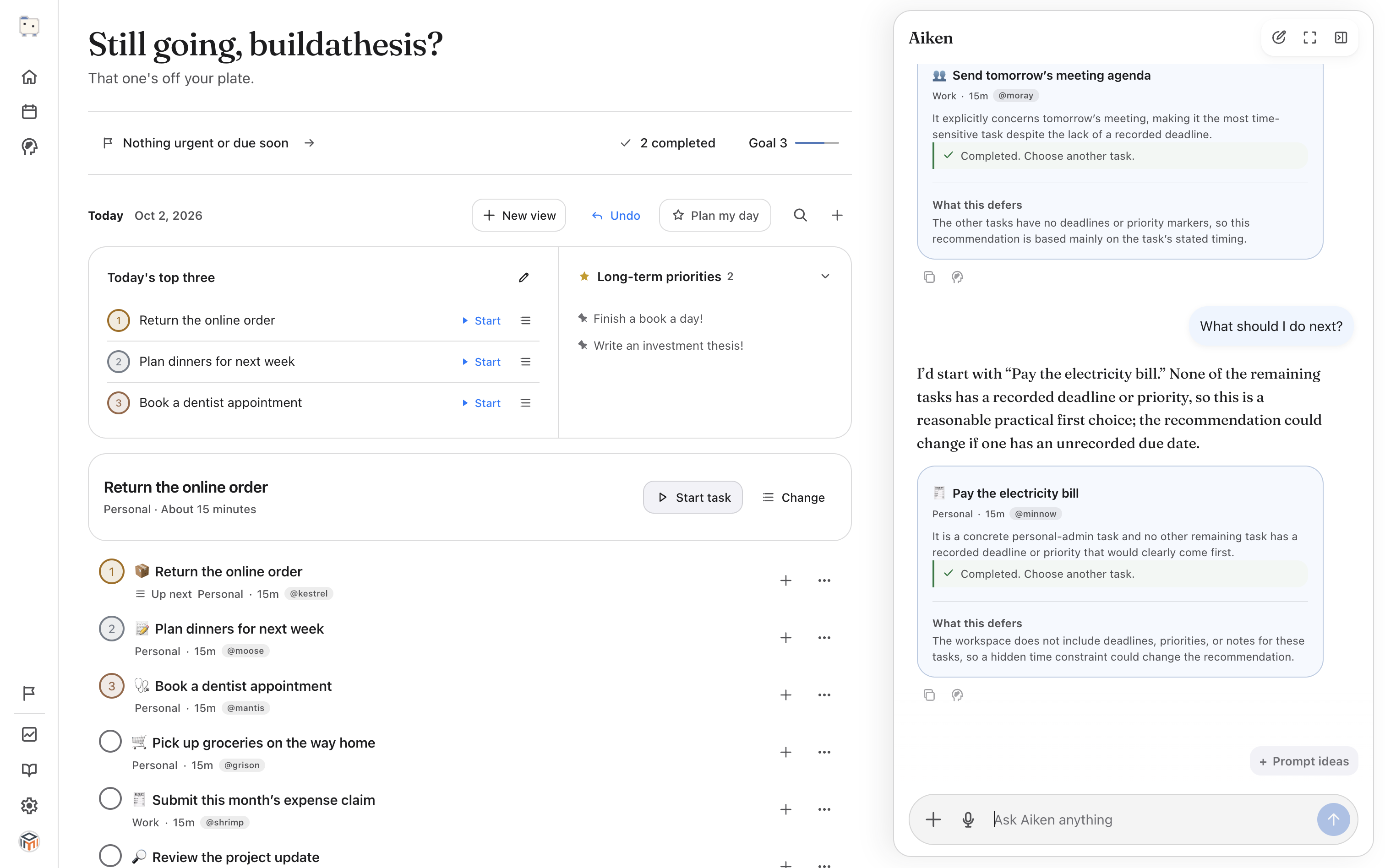
Start with a short note
For a first try, use a few lines rather than an entire notebook. Include any dates you know, but leave a date out if you haven't agreed one.
Here's an example: “Send Sam the workshop agenda tomorrow. Book a bike service this week. Read the research summary; allow 20 minutes.”
Ask Aiken to turn it into tasks
Sign in for AI help, then paste this into the chat: “Turn these notes into three tasks for me to review: send Sam the workshop agenda tomorrow; book a bike service this week; read the research summary for 20 minutes.”
Click Send message. On a fresh workspace the button may say Turn this into tasks. Aiken adds the tasks automatically and shows a summary of the changes.
Check the added tasks
Read the titles and dates. Aiken can misunderstand a name or treat a passing thought as a commitment. Compare the result with your original note.
Edit a task in your task list if its title or details need changing.
If Aiken added something you did not want, use Undo on the change summary to reverse the additions.
Decide which ones belong today
Adding a task doesn't mean you have to do it today. In Today's top three, click Choose priorities. Add the agenda task if Sam needs it tomorrow, then click Save priorities. You can choose fewer than three.
If the bike service can wait, leave it in the main list. You haven't lost it by leaving it out of today's priorities.
If your notes are in a photo
Use Add attachment beside the chat input to attach the image. Ask Aiken to extract the tasks, then check the added tasks in the same way. Check names and handwritten dates particularly carefully.
If the note says “Friday” and you're unsure which Friday was meant, check the source before saving a due date. A neat task list won't resolve missing information.